Microsoft Word add-in
CaseRead for Microsoft Word
The CaseRead add-in puts your firm’s research, drafting, review, and cite-check workflows in a task pane beside the document you have open in Word.
Research, draft, review and cite-check beside your document
Document content is sent to CaseRead only when you take an explicit action in the pane, and every proposed change is one you keep or undo.
Using the pane requires a CaseRead account and a pane credential from Settings → Integrations in the CaseRead app.
Word, with tracked changes
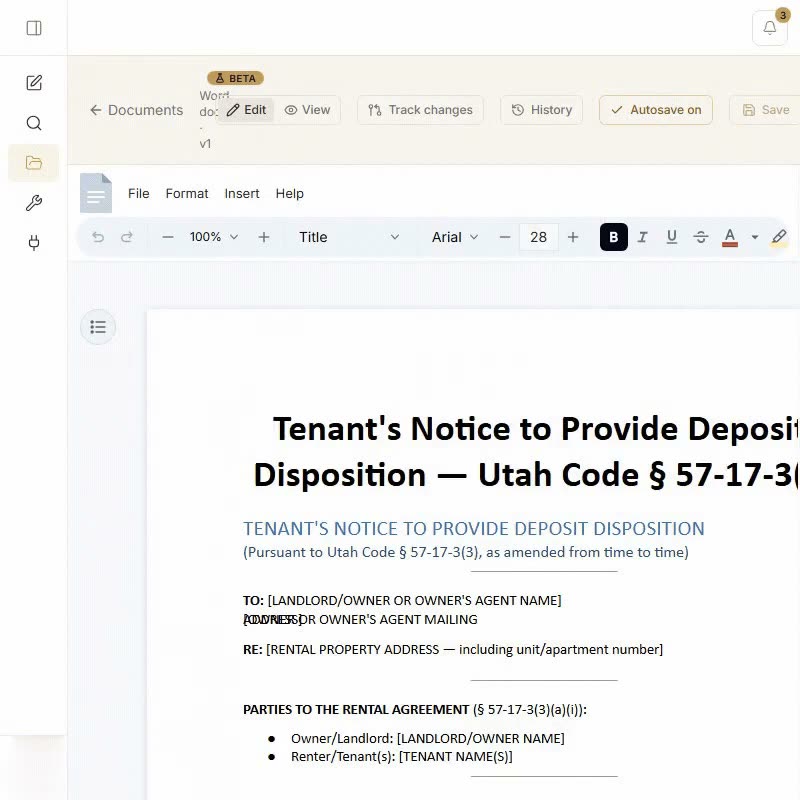
Edit Word documents in the browser, with AI revisions as tracked changes, or use CaseRead for Word in a side panel.
Microsoft AppSource
One click from Word’s add-in store
CaseRead for Microsoft Word is coming to Microsoft AppSource, Word’s built-in add-in store. Once the listing is live, installing will be one click from Home → Add-ins inside Word, and this page will link to it directly.
- Installing will be one click from Home → Add-ins inside Word
- Until then: central deployment or sideload, below
Install
Two ways to install
For IT admins: central deployment
A Microsoft 365 administrator can deploy the add-in to chosen users, groups, or the whole firm from the admin center. Users get the add-in in Word automatically, nothing to install by hand.
- Sign in to the Microsoft 365 admin center (admin.microsoft.com) as a Global or Exchange administrator.
- Go to Settings → Integrated apps and choose Upload custom apps.
- Select Office Add-in, choose Provide link to manifest file, and paste:
https://www.caseread.ai/word-addin/manifest.xml - Validate, then assign the users or groups who should get the add-in.
- Finish the deployment. Microsoft notes new deployments can take up to a few hours to appear in users’ Word ribbons.
Per-user install (sideload)
Without an admin deployment, any user can load the add-in themselves. The in-app guide at Settings → Integrations in CaseRead walks through it step by step for your platform; the short version:
- Word on the web: save the manifest file from the URL above, then use Add-ins → More Add-ins → My Add-ins → Upload My Add-in and choose the saved file.
- Word for Windows: follow the shared-folder catalog steps in the Settings → Integrations guide, which point Word’s Trust Center at the manifest.
Already installed it before? A sideloaded add-in keeps the manifest it was installed with. To pick up manifest changes, such as the ribbon button added for the AppSource release, remove the add-in and sideload it again from the same URL. The pane itself always runs the current version; only manifest-level changes need a re-sideload.
How the add-in handles document content is described in our Privacy Policy. For deployment help, contact us.
